

How Upstart boots Ubuntu-based systems
Ignition
Once the Linux kernel takes control of the hardware and loaded all the drivers, it gives control to the small init program, which then sets up and starts the rest of the system. Until a couple of years ago, almost every Linux distribution used the System V init with its either loved or hated runlevel concept. System V tentatively launched one service after another, resulting in fairly lengthy boot times. This prompted Canonical to start developing a faster replacement in 2006. The results, dubbed Upstart [1], have booted Ubuntu distributions and RedHat Enterprise Linux (RHEL) 6 ever since.
Eventful Workplaces
In contrast to the legacy System V init, Upstart tries to boot all the required services and programs in parallel wherever possible. Additionally, Upstart can react to certain events, such as plugging in or replacing a hard disk at run time. It also will monitor the processes it launches, if desired, and restart them in the case of a crash. To do all this, Upstart completely breaks with the legacy runlevel model. If you still need to work with runlevels, forget everything you thought you knew as you read this article.
To boot a Linux system completely, Upstart needs to perform various tasks – such as enabling the network or launching the httpd. Each of these tasks is a job from Upstart's point of view, but it will only take on a job if a matching event has occurred previously. An event of this kind could be "Network enabled" or "Printer daemon started." If multiple jobs exist for an event, Upstart tries to run them in parallel, and all of this happens automatically. A web server simply needs to tell Upstart that it would like to launch with the "Network enabled" event and Upstart takes care of the details.
For each job, a separate configuration file with a .conf suffix exists in /etc/init. For example, cups.conf contains all the information that Upstart needs to know to enable the CUPS printer daemon. The file name without the suffix is also the official name of the job.
Life or Death
The administrator's best friend is the initctl tool from the Upstart distribution. It controls and manages all the jobs. For example, the command
initctl list
lists all the jobs and their current states (Figure 1).
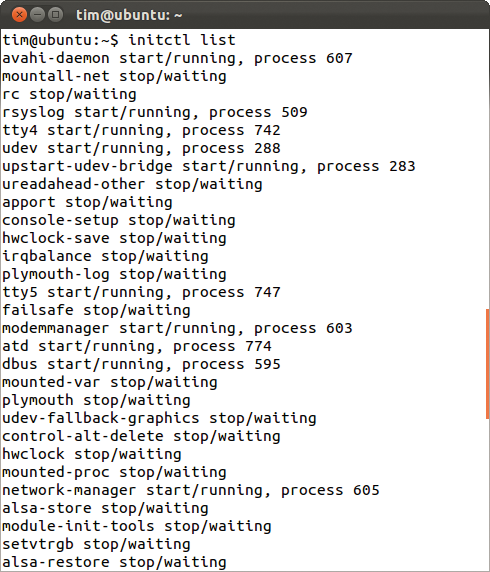
initctl list command returns the status for all jobs.Each line starts with the job name; the term in front of the slash tells whether the job was started (start) or stopped (stop) as the last action. The current status follows the slash. If a job, or a service started by the job, is running, you will also see a process ID at the end of the line. To stop a running job, enter:
initctl stop jobname
To avoid wearing out your fingers, you can abbreviate this to:
stop jobname
The stop command is simply a wrapper script for initctl stop, which also belongs to the Upstart package and normally resides in /sbin. In each case, Upstart first sends a SIGTERM signal to the job in question and then waits for the default five seconds. If the job is still running after this wait, Upstart immediately issues a SIGKILL signal to kill the job. In other words, once you have decided to initctl stop, the decision is final.
Besides stop, you can, of course, use the start and restart commands, which start or restart a job. Table 1 gives an overview of the most important initctl commands (more on these other commands later). In regard to /sbin, however, note that this is also where Upstart itself resides, usurping the name init to make sure that Linux finds it.
Tabelle 1: initctl Command Overview
|
Command |
Short Form |
Meaning |
|---|---|---|
|
initctl start jobname |
start jobname |
Starts the job jobname |
|
initctl stop jobname |
stop jobname |
Stops the job jobname |
|
initctl restart jobname |
restart jobname |
Restarts the job jobname |
|
initctl status jobname |
status jobname |
Returns the status of the job jobname |
|
initctl list |
Lists all the existing jobs and their status |
|
|
initctl check-config |
Checks all job files for errors/typos |
|
|
initctl show-config |
Shows for each job the events the job is waiting for, and the events it generates. |
|
|
initctl emit event |
Triggers the event event. |
|
|
initctl reload-configuration |
Reparses its own configuration |
Kickstart
If you want to start your own service at boot time, you need to create a new job file to handle this. In the simplest case, the job file will be a one-liner:
exec /usr/bin/measd --log= /var/log/noise/measure.log
The text that follows exec is simply the program or the service you want Upstart to execute. The example launches a noise measurement program, which continuously measures the noise level via a hardware component and dumps its measurement results in the specified logfile. Once the above line has been bundled into a file, such as measure.conf, and the file has moved in with its colleagues below /etc/init, you can do the following to run the measuring software with root privileges:
sudo start measure
Or, you can type
sudo stop measure
to quit. You will probably want to start the service automatically at boot time. In this case, you have to extend the job file as shown in Listing 1.
Listing 1: Example of a Simple Job File
01 # Start a noise measurement program
02 start on filesystem
03 exec /usr/bin/measd --log=/var/log/noise/measure.log
In the usual shell script style, comments start with a pound sign (#). The start on command in line 2 is followed by the event name. Once the event occurs, Upstart automatically starts the service. Instead of using exec, you could just as easily insert a script:
script
# small Bash script:
if [...]; then
...
...
fi
end script
Upstart will not run a program now; instead, it will process the shell commands between script and end script. The job files are plain text and should not be executable if you can help it.
A Favorable Opportunity
Events that a job can wait for can originate from several sources. Once Upstart starts to work, it automatically creates an event by the name of startup. A service that only waits for this
start on startup
will thus not have a working network configuration or a filesystem.
An event always occurs when a job starts or stops. The line
start on starting rsyslog
tells Upstart to launch, for example, the noise measurement program at the same time as rsyslog. If you wanted to be sure rsyslog was running, you would use started instead:
start on started rsyslog
This would run the noise measurement program after rsyslog starts, but you can't precisely predict when. In other words, you have to assume that rsyslog isn't fully up and running. Finally, Upstart can start a job when another service stops or if a service is not running:
start on stopped rsyslog
System services, especially the udev device manager, are another important source of events. When you plug in a new device, udev creates an event in the form of sub-device-action where sub stands for the udev subsystem to address and action is the action performed. For example, connecting a storage medium would trigger a block-device-added event.
For a still incomplete list, but one that contains the basic events and those available on every Ubuntu system, you can launch the man upstart-events man page (Figure 5). The existing job files in /etc/init are another source of information.
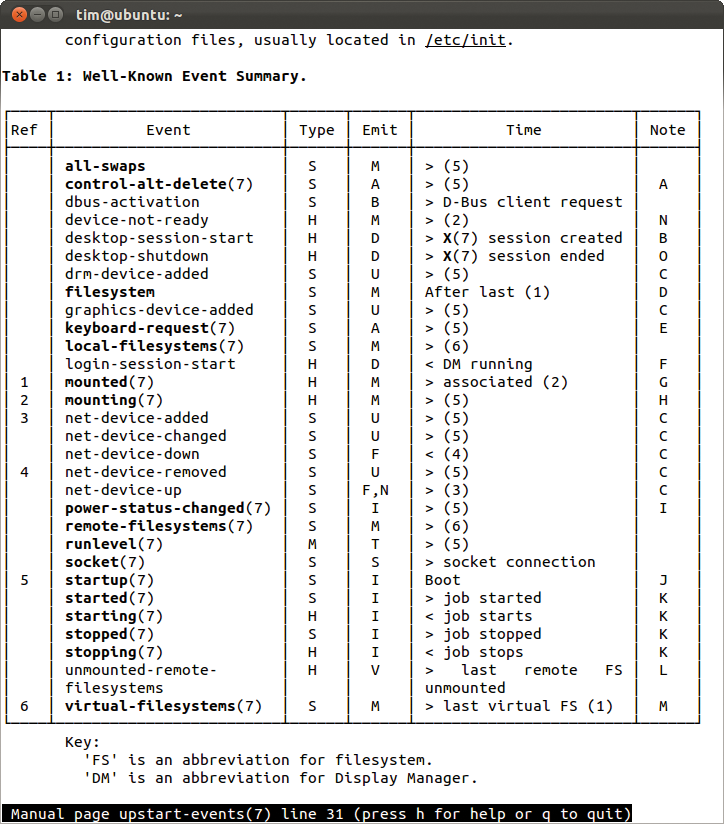
upstart-events only gives you a small excerpt of all possible events.Finally, the root user can run initctl to trigger his or her very own event:
initctl emit myevent
Of course, a script in the job file can also trigger this event. To avoid messing up Upstart's plans, you need to add the following line to the job file:
emit myevent
This is a formal announcement that the job will, at some time, trigger the myevent event. If a job triggers multiple events, you can list them in separate lines, like this:
emit start-measure
emit end-measure
The emit lines also need an initctl check-config to check the dependencies between jobs (see the "Troubleshooting" box).
Bindings
Some services need multiple events. For example, the noise measurement program might not just store its data on disk; it might send the data to a server on the Internet at regular intervals. In other words, the measurement program can't start unless the filesystem exists and the network is running – that is, until the events filesystem and started network-manager have occurred. Thus, you need to add precisely these conditions to the job file following start on and link them with an and:
start on (filesystem and started network-manager)
Besides and, you can also use the logical (or) operator. In combination with brackets, you can thus construct almost arbitrarily complex conditions, as demonstrated by the Plymouth bootsplash utility (more about square brackets and runlevel later on):
start on (starting mountall or (runlevel [016] and (desktop-shutdown or stopped xdm or stopped uxlaunch)))
Although you can wrap the line and use tabs to make it more legible, you are not allowed to add multiple start on lines.
The following command shows what events the individual jobs are waiting for, or the events that they generate themselves (Figure 3):
If you add the -e parameter, the command will unfold complex conditions and show you which parts are events and which are other jobs (see also the "Troubleshooting" box).
Monitoring
It would be pretty nasty if the noise measurement program were to crash. Even if an administrator were to step in immediately, valuable measurements would be lost for a certain period of time. Fortunately, you can tell Upstart to monitor a service and restart it if a crash occurs. To do this, just add a line with the
respawn
keyword to the job file. To be able to monitor the service, Upstart launches all the processes in the foreground by default. You can only avoid this by telling the service that follows exec to fork itself.
The automatic restart poses a problem: If the service were to continually fail because of a program error, Upstart would infinitely reanimate it in an endless loop – thus potentially overloading the whole system. To prevent this, you can enter a time span in the job file. The following two lines do the trick:
respawn 5 60
respawn
This tells Upstart to launch the measurement program five times within 60 seconds. The first respawn simply sets the interval; the second one enables the automatic reanimation feature.
Janitors
Sometimes, you need to rearrange things or maybe do some cleanup, for example, in the case of the untimely demise of a service. The noise measurement program stores its data in the /var/log/noise directory. It is thus a good idea to set up the directory before the service starts.
Fortunately, you can define a shell script in the job file and tell Upstart to run the script before starting the service:
pre-start script
# Create all necessary directories
mkdir -p /var/log/noise
end script
Notice that this script slots in between pre-start script and end script. It is only designed for preparatory actions and not allowed to start the service itself.
In the example, it ensures that the measurement software finds the directory in which it will store its data. In a similar fashion, there is a post-stop script section that Upstart processes when the service terminates. The shell commands here will normally clean up; in the case of the measurement program, this would be:
post-stop script
# Tidy up:
rm -rf /var/log/noise
end script
Finally, you can use the post-start script, which Upstart always runs at the same time as the service that follows exec.
The pre-start and post-stop scripts shown here are actually one-liners, which you can abbreviate to
pre-start exec mkdir -p /var/log/noise
and, to save yourself a little time:
post-stop exec rm -rf /var/log/noise
All Together Now
Listing 2 shows the complete job file for the measuring station. The only new things here are the first two lines: description introduces the job description, and author is the programmer. These details tell the administrators about the purpose of the job and provide contact information.
Listing 2: measure.conf
01 description  "Example of a job"
02 author      "Tim Schürmann"
03
04 start on filesystem
05 exec /usr/bin/measd --log=/var/log/noise/measure.log
06
07 pre-start script
08 # Create required script:
09 mkdir -p /var/log/noise
10 end script
11
12 post-stop script
13 # Clean up:
14 rm -rf /var/log/noise
15 end script
16
17 respawn
18 respawn limit 5 60
19 stop on filesystem
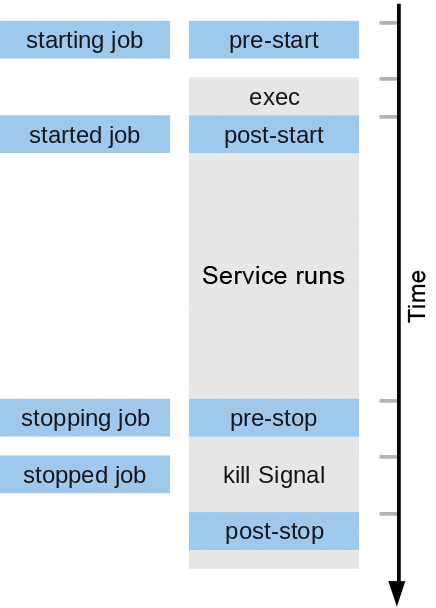
When the filesystem occurs, Upstart enables the job; at the same time, it triggers the starting measure event in order to be able to react to other jobs. It also runs the shell commands that follow pre-start script.
Once this has happened, it enables the /usr/bin/measd service and triggers the started measure event. Figure 6 illustrates this workflow.
Legacy Runlevels
Many software packages still don't work with job files but with the legacy System V init scripts. This is even true of most services in the current Ubuntu repositories. For example, if you install the Apache web server, don't bother looking for a matching job file in /etc/init. Instead, you will find a System V init script below /etc/init.d, just as in the good old days.
To prevent legacy scripts like this from failing in Ubuntu, Upstart uses a simple trick: Right at the end, it starts the rc job that executes the /etc/init.d/rc script. In turn, the script processes all the legacy System V init scripts below /etc/init.d. Upstart references the /etc/inittab file to discover the runlevel used here, or it takes the runlevel from the kernel command line. If in doubt, it assumes runlevel 2, which means a system with a graphical interface and network operations.
If you want a job to run with the scripts in a specific runlevel, you need to use the runlevel event:
start on runlevel [23]
In this case, the job would only run in runlevels 2 and 3 – parallel to all the scripts in these runlevels. Upstart triggers the runlevel event when it processes the System V init scripts for a runlevel. You can stop a job of this kind in a similar way:
stop on runlevel [!2345]
The exclamation mark here is a negation.
Additionally, Upstart imitates the behavior of the legacy System V init. So, you can still issue
telinit 2
to enter runlevel 2. And, the reboot and shutdown commands continue to work in the normal way. Under the hood, telinit now sends an event to Upstart. The default runlevel is also set in the rc-sysinit.conf job file as the DEFAULT_RUNLEVEL variable.
Conclusions
Upstart tidies up the legacy clutter in the runlevels and offers a much simpler configuration with its plain text jobs. At the same time, it accelerates the system start with parallel execution. The System V init replacement is not a panacea, however. Depending on the dependencies between jobs, Upstart will still need to process them sequentially in the old-fashioned way.
Upstart is still under development. Each new version and each Ubuntu release adds new features or minor improvements. For example, the developers plan to support time-driven events in the future and thus to take over the tasks currently handled by cron. The Upstart developers expressly point out that the configuration file structure is subject to change – and this really does happen all the time. For example, version 1.3 added the kill signal keyword to let users capture the SIGTERM signal in a job file.
The current developer version is available from Launchpad [2]; when this issue went to press, the Upstart website was offering the stable 1.4 version for download [1].
If you want to write your own jobs or delve more deeply into programming them, you will definitely want to read the exhaustive cookbook [3]. It contains many valuable tips and standard solutions for frequent problems and questions.
Right now, you will only encounter Upstart in Ubuntu, its official derivatives (e.g., Kubuntu), and distributions that build directly on them (e.g., LinuxMint); the previously mentioned RHEL 6; and Google's Chromium OS. Upstart's reign in RHEL is likely to come to an end soon, however, with Fedora version 15 moving to Upstart's competitor systemd [4], which is preferred by many distributions.
Canonical is unlikely to throw out its own baby with the bath water, however, so administrators can look forward to a variety of init variants in the future.